
01What WiseEntry does
WiseEntry turns scanned invoice PDFs into a clean CSV ready for most accounting and bookkeeping applications that import invoices from a .csv file.
Drop a folder of invoice PDFs in. WiseEntry reads each one with Claude, pulls out the vendor, invoice number, dates, totals, and line items, applies your saved coding rules, lets you review and fix anything that looks off, and writes a CSV right back into the same folder.
Four stages: Folder → Extract → Review → Export. You can step backward through them at any time.
02First-run setup
The first time you open WiseEntry, you'll do three things. After that, it remembers.
1. Set your API key
WiseEntry uses your own Anthropic API key. You'll see a gold-bordered welcome panel asking for it — paste your key (it starts with sk-ant-) and pick a passphrase.
The key is encrypted with your passphrase using AES-GCM and stored only on this device. You'll type the passphrase once per session to unlock it.
Get one at console.anthropic.com. WiseEntry uses Claude Sonnet 4.6, which costs about $0.01–$0.03 per invoice depending on length.
2. Pick your app-config folder
Pick a folder anywhere on your computer. WiseEntry stores its CSV template (wiseentry.csv) and rules backups here. You'll only do this once — it's remembered.
~/Documents/WiseEntry/ works well. Make a fresh empty folder for it; WiseEntry will populate it on first run.
3. Pick today's work folder
This is the folder of invoice PDFs you want to process today. WiseEntry reads PDFs from it and writes the CSV back to the same place. Originals are never modified.
WiseEntry needs the File System Access API. Use a recent Chrome, Edge, or Brave. Safari and Firefox don't yet support folder access from the browser.
03Your daily workflow
- Open WiseEntry. If you closed it after the last batch, you'll just need to type your passphrase to unlock the API key.
- Pick the work folder for this batch. WiseEntry scans it for PDFs and shows them as a queue with thumbnails.
- Hit “Extract all”. WiseEntry sends each PDF to Claude one at a time. Watch the progress bar — each invoice usually takes 5–15 seconds.
- Review the table. Anything missing or unusual is flagged. Click into any row to see the PDF side-by-side with the extracted fields. Edit anything by clicking on it.
- Code uncoded vendors. If a vendor doesn't match an existing rule, you'll see them in the “uncoded” count. Click Code uncoded vendors to walk through them one at a time.
- Export. Pick a filename (auto-suggested with a timestamp), click export, and you'll have a CSV in your work folder.
20 invoices ≈ 5 minutes start to finish, including a quick review pass. Most of that's wall-clock time on the extraction; the human work is just glancing at flagged rows.
04Vendor rules
A rule is a stored coding decision: “when this vendor appears, use this Default GL and Default property”. This is where most time savings come from. Once a vendor is coded correctly, future invoices can code themselves.
Rules vs GL accounts (mental model)
- Rule = the matching logic (which vendor this applies to) + coding defaults.
- GL account = the account value you want in the exported
gl_codecolumn. - Property code = the value you want in exported
property_code. - Rule match first, then export mapping — rules decide values; the CSV template writes them to columns (see CSV template).
(1) How do I recognize this vendor? (Vendor match) and (2) What coding do I want by default? (Default GL + Default property + optional detail rules).
When to create a rule
- Create a rule the first time you code a vendor you expect to see again.
- Use summary mode for single-code vendors (utilities, flat-fee services).
- Use detail mode when one invoice can contain multiple categories that need different GL codes.
Matching strategy in Settings
Rules apply automatically after extraction. You can tune matching strictness in Settings:
- Exact — case-sensitive equality. Strict.
- Normalized (default) — case-insensitive, ignores suffixes like
LLC,Inc,Co. - Fuzzy — similarity above threshold (default 0.85), useful for slight OCR/name variation.
Add rule form: every field explained
Vendor match
Text used to identify invoices from this vendor. Be specific enough to avoid collisions.
- Good:
CITY OF BAYTOWN UTILITY SERVICES - Good:
ACME PLUMBING - Risky:
CITY(too broad, can match unrelated vendors)
Default GL
Fallback GL code for the rule. In detail mode, this is used when no line-item keyword rule matches.
- Example:
6000for general repairs - Example:
6300for utilities - Risky: leaving it blank unless your downstream process intentionally fills it later
Default property
Fallback property code. Line-item rules can override it, but blank property values in detail lines fall back here.
- Example:
302 Red Bud - Example:
HOU-001 - Risky: using a temporary code you forget to update later
Tax GL
GL code used for emitted tax rows in detail mode. If blank, WiseEntry falls back to Default GL.
- Example:
2200-SALESTAXwhen tax should post separately - Example:
6000when tax should roll into same account - Risky: assuming tax splits automatically without verifying your accounting policy
Emit distribution lines
Switches between summary vs detail export behavior.
- Off (summary mode): one row per invoice
- On (detail mode): one row per non-zero line item, plus tax rows
- Typical use: On for mixed repair/trade invoices, Off for simple monthly bills
Line-item keywords (easy) / JSON (advanced)
Keyword rules that map line descriptions to specific GL/property combinations in detail mode.
- Easy mode examples:
truck,sewer,recycle(one per line or comma-separated) - Good: specific words tied to distinct coding outcomes
- Risky: generic terms like
servicethat match too many lines
Note
Internal reminder only. This does not affect matching or export behavior.
- Example:
Use this for invoices after 2026 contract update. - Example:
Vendor changed format in Q3; watch for OCR misses.
Summary mode vs detail mode
Use summary mode when one invoice should land on one coding line. Use detail mode when one invoice has multiple meaningful charge types that must post to different GLs.
Practical setup recipes
Rules setup video walkthrough
Use the player's built-in controls for playback and volume. For all downloadable reference files, see WiseEntry Resources.
Recipe 1: single-code utility vendor
Input invoice pattern: monthly utility bill, one total you post to one GL/property.
Rule setup: Vendor match = utility vendor name, Default GL = utility GL, Default property = property code, Emit distribution lines = Off.
Expected CSV effect: one exported row per invoice with stable gl_code and property_code.
Recipe 2: multi-line maintenance vendor (detail mode)
Input invoice pattern: invoice contains labor, trip charge, materials, and tax.
Rule setup: Emit distribution lines = On, set Default GL/Default property, add keywords for line-item overrides, optionally set Tax GL.
Expected CSV effect: multiple rows from one invoice, each line carrying its mapped coding.
Recipe 3: vendor name variants
Input invoice pattern: same vendor appears as ACME PLUMBING LLC, Acme Plumbing Inc., or with punctuation noise.
Rule setup: use a stable Vendor match string and keep matching strategy at Normalized (or Fuzzy if OCR is messy).
Expected CSV effect: all variants map to one consistent coding rule.
Recipe 4: tax handling split vs combined
Input invoice pattern: invoices with explicit sales tax lines.
Rule setup: in detail mode, set Tax GL to dedicated tax account if needed; otherwise leave it to inherit Default GL.
Expected CSV effect: tax rows post either separately or with operating charges based on your setup.
Common mistakes and fixes
- Wrong vendor matched: make Vendor match more specific, lower fuzzy usage, or switch to Normalized/Exact.
- Blank GL or property on export: verify Default GL/Default property are filled and confirm your template includes
gl_codeandproperty_codecolumns. - Too many detail rows: turn off Emit distribution lines for that vendor, or tighten line-item keywords.
- Tax posted to wrong account: set Tax GL explicitly for detail-mode vendors.
- Rule not triggering after import: review vendor text normalization and confirm matching strategy in Settings.
Use Reviewing & editing to fix one-off extraction issues, CSV template to confirm column names, and Exporting to validate uncoded warnings before final CSV output.
Adding rules two ways
Either click Rules in the top bar to add them manually, or let WiseEntry capture them in the uncoded walkthrough: the “Remember this for [vendor]” option is on by default.
Backup & restore
From the Rules editor, Export rules… downloads JSON. Import rules… restores from JSON (replace or merge). Files from earlier WiseITOC exports are supported.
05The CSV template
The shape of the output CSV is defined by wiseentry.csv in your app-config folder. The first row is the header — that's what WiseEntry uses to figure out what each column means. Edit this file directly when you need a different column order or extra columns.
Recognized column names
These header names map to extracted fields automatically (case-insensitive, punctuation-flexible):
vendor_name      → vendor
invoice_number   → invoice ID
invoice_date     → invoice issue date
due_date         → payment due date
property_code    → from the rule
gl_code          → from the rule
description      → first line item or "Invoice #..."
amount           → total
tax_amount       → tax (if broken out)
currency         → ISO 4217 (USD, EUR, ...)
notes            → blank by default
Any header WiseEntry doesn't recognize gets emitted as an empty column on every row. Add static fields, post-import flags, batch IDs — anything you need. Fill them in after import or in your spreadsheet.
If wiseentry.csv doesn't exist
WiseEntry creates it for you the first time you export, with a sensible default schema and three example rows. Open it in your spreadsheet of choice, change column order, add or remove columns, save it back. The example rows are ignored on read.
06Reviewing & editing
The review table shows one row per extracted invoice. Click any row to open the card view: PDF on the left, fields on the right. Use ← and → to flip through, or Esc to come back.
Editing fields
In the table, double-click any cell to edit it. In the card view, single-click any field. Enter commits, Esc cancels. Edits are saved immediately and survive across sessions (until you change folders or delete the batch).
What gets flagged
A row is marked “needs attention” if any of these are missing: vendor name, invoice number, invoice date, total amount. You can still export — flagged rows just appear with empty cells in the CSV.
The model is good but not perfect. Handwritten amounts, faded scans, and unusual layouts are the most common causes of misses. The flag isn't a verdict — it's a “please double-check this one.”
07Exporting
The export stage shows the columns from your wiseentry.csv template (mapped fields in gold, custom columns with a ?) and lets you pick a filename. Default is invoices-YYYYMMDD-HHMM.csv — adjust the prefix in Settings.
This export format is designed to be flexible, so it works with most accounting and bookkeeping systems that support invoice CSV import.
Hit Export. The file is written to your work folder. You'll see a green confirmation panel.
If your invoices contain accented characters and you open the CSV in Excel, turn on Prepend UTF-8 BOM in Settings. Without it, Excel can mangle non-ASCII text.
08Your API key, explained
WiseEntry uses your own Anthropic API key. The key is sent directly from your browser to api.anthropic.com. It never goes to FlexMystic's servers — there are no FlexMystic servers in this loop. The HostGator URL just hosts the static files; the moment the page loads, every API call is browser-to-Anthropic.
How encryption works
When you set up your key, you choose a passphrase. WiseEntry derives an AES-GCM encryption key from your passphrase using PBKDF2 with 250,000 iterations, encrypts the API key, and stores the ciphertext in your browser's local storage. The plaintext key is never persisted — it lives only in memory for the duration of your session.
Three states you'll see
- Setup — first run only. Gold-bordered welcome.
- Unlock — slim navy strip when you return. Type your passphrase.
- Active — green-tinted strip showing your key (masked) is unlocked for this session.
Buttons in the active state
- Change passphrase — re-encrypt with a new passphrase. Need the old one to do it.
- Lock — drop the key from memory. Useful if you're stepping away.
- Forget on this device — wipe the encrypted blob entirely. You'll have to paste your key again next time.
09Reference resources
Need training/support materials? Open the full resources page here: WiseEntry Resources.
WiseEntry is intended to support most accounting and bookkeeping applications that import invoice data from a .csv file.
Workflow image preview
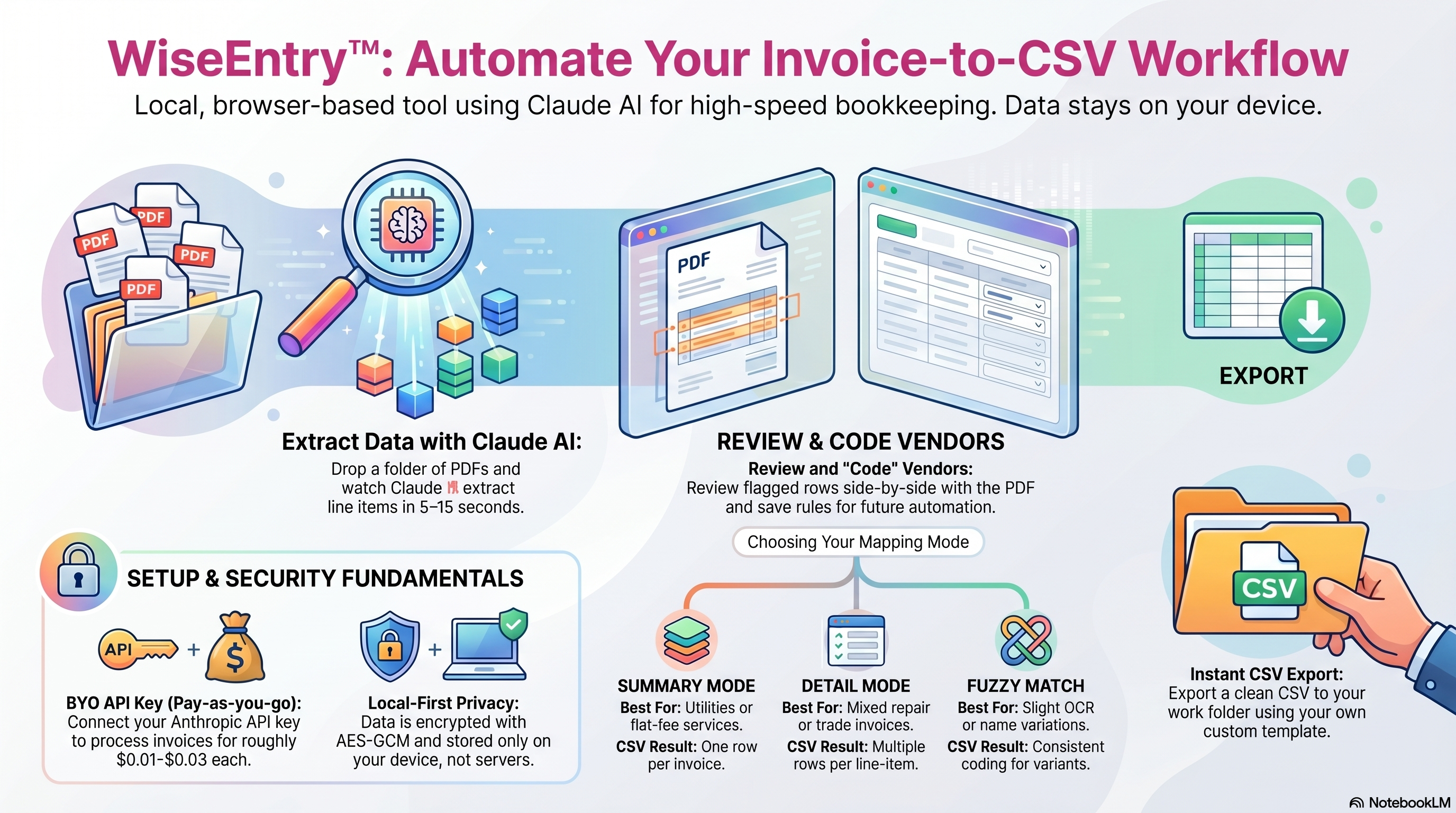
Workflow demo video (with volume control)
Use the player's built-in controls for playback and volume. On some devices/browsers, volume behavior may be OS-managed.
10Troubleshooting
“Browser not supported”
You're on Safari or Firefox. Switch to Chrome, Edge, or Brave for the work. WiseEntry needs showDirectoryPicker(), which only Chromium-family browsers ship.
The folder picker doesn't open
Make sure you're on https://, not http://. The File System Access API requires HTTPS. WiseEntry's .htaccess redirects HTTP to HTTPS automatically — if you somehow got past that, try the URL with https:// explicitly.
“Permission denied” on the work folder
The browser's permission to access your folder expires after a while. Click the folder name in the path bar to re-pick it. The app remembers which folder you chose, but the permission grant doesn't persist forever.
Extraction fails on a specific invoice
Common causes: PDF is password-protected, scan is too low-resolution, the file is huge (over ~30 MB). Click Retry on the failed row. If it keeps failing, open the PDF directly to check it's readable, then re-add a fresh copy.
“Incorrect passphrase”
Try again carefully — the passphrase is case-sensitive. If you've genuinely forgotten it, click Reset on the unlock panel; this wipes the encrypted blob, and you'll paste your API key fresh and pick a new passphrase.
Your accounting app rejected the CSV
Most often it's column names. Open wiseentry.csv in your app-config folder and edit the header row to match exactly what your target accounting/bookkeeping import expects. Save the file, then re-run export.
The page looks broken / blank
Usually a stale cached version after an update. Hard-refresh: Ctrl+Shift+R on Windows/Linux, Cmd+Shift+R on Mac.
11Privacy & data
WiseEntry is a single-user, BYO-key tool. Here's where every piece of data lives:
- PDFs — never uploaded anywhere by WiseEntry except direct to Anthropic for extraction. Never shared with FlexMystic. Never persisted by WiseEntry beyond the session.
- Extracted JSON — saved in your browser's IndexedDB so you can come back to a batch later. Tied to the work folder name. Cleared when you click Clear all data in Settings.
- API key — encrypted with your passphrase, stored in your browser's local storage. Never transmitted anywhere except to
api.anthropic.comas the auth header on each extraction call. - Vendor rules — IndexedDB, exportable as JSON.
- The CSV template — a real file in your app-config folder. You own it; edit it freely.
To wipe everything WiseEntry has stored on this device, open Settings → Storage → Clear all data on this device. Files in your work folders are not touched.